Send SMS from Outlook
Send and receive SMS from Outlook and other mail applications with InMobile's email to SMS solution. Write your message as an email, enter the recipient's phone number and send — and it will be delivered as an SMS.

Send SMS from email
With a email to sms solution you can send SMS directly from Outlook and other mail programs without having to log into a separate system. You simply write your message as a regular email, and InMobiles will make sure SMS gateways to convert and deliver the message as an SMS to the recipient's mobile.
The solution makes it easy to integrate SMS into your existing workflows. Many companies use it, for example, for notifications, service messages or automatic messages from internal systems via InMobiles SMS FIRE.

Send SMS directly from Outlook
Works with other email applications as well
No installation or login required
Receive replies to email with a virtual number




Why send SMS from Outlook?
When you send SMS from Outlook, you can communicate quickly and directly with customers, colleagues or users without leaving your mail program. You simply write your message as a regular email, after which it is automatically converted and delivered as an SMS to the recipient's mobile.
This makes it easy to integrate SMS into your existing workflows. Many companies use the solution for notifications, service messages and reminders because the messages can be sent quickly from the systems their employees already work in on a daily basis.
At the same time, the solution allows you to work in a structured way with SMS communication. Among other things, you can choose your own sender name, control which email addresses are allowed to send SMS, and receive replies directly in your email inbox if you use one virtual number.
Ready to send SMS from Outlook?
Create a free trial account and send your first email to SMS.
Or book a meeting with one of our specialists and learn more about how email to SMS can streamline your everyday life.

How to send SMS from Outlook
#1 Write your message as an email
Before you can send SMS from your email, you need to have it set up in InMobile. You can do this in the “Email to SMS” tab. See how in our guide: Email to SMS.
After the setup is done, you can create a new email in Outlook or your preferred mail program. Type your message in the body of the email — just like if you sent a regular email — and then proceed to step 2.
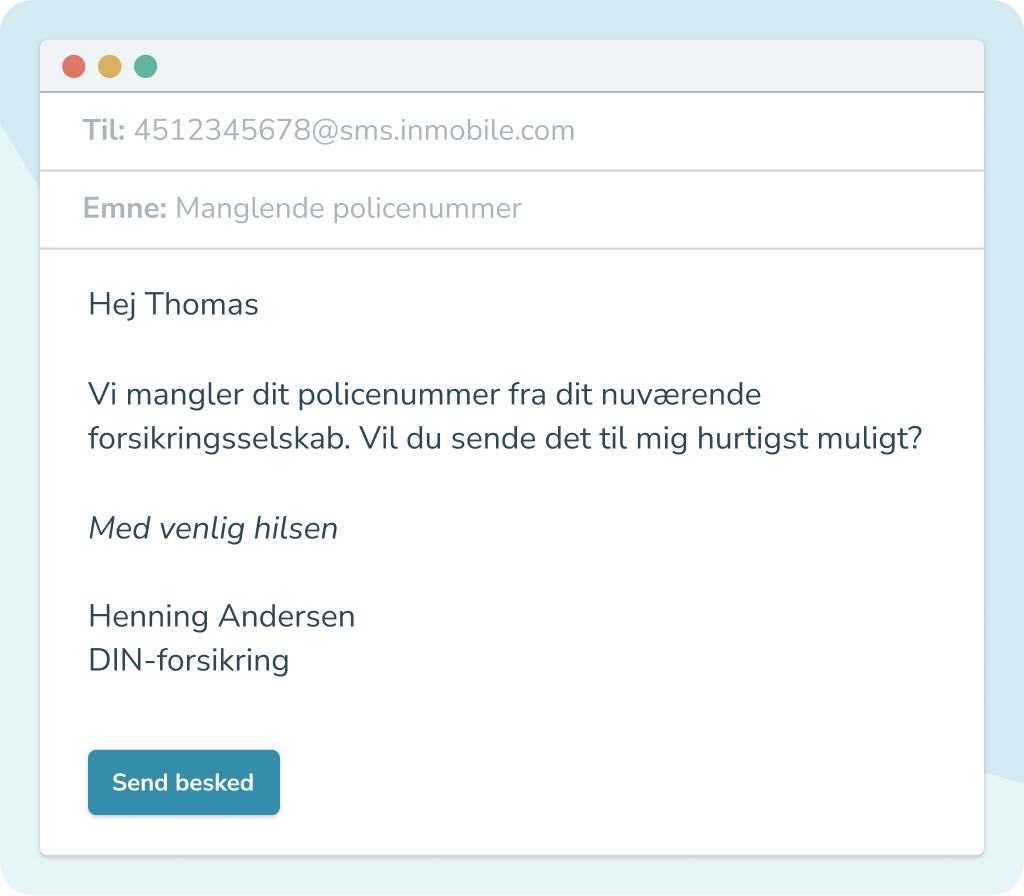
#2 Specify mobile number as recipient
To send an SMS from your mail program, enter the recipient's mobile number in the email recipient field. The number is written with country code followed by the text @sms .inmobile.dk (example: 4588888888@sms.inmobile.dk). Then Outlook knows that the message should be sent as an SMS.
If you need to send to an entire list at once, you do so by using the list's unique email address. You can find it in your InMobile account under the menu item “Email to SMS” by pressing the button “Lister email addresses”. Example: alle-kunder@sms.inmobile.dk.

#3 Send SMS directly from Outlook
Once you have written your message and entered the mobile number as the recipient, you send the email as normal. InMobile's platform will then receive the email, convert it into an SMS and deliver the message directly to the recipient's mobile phone in seconds.
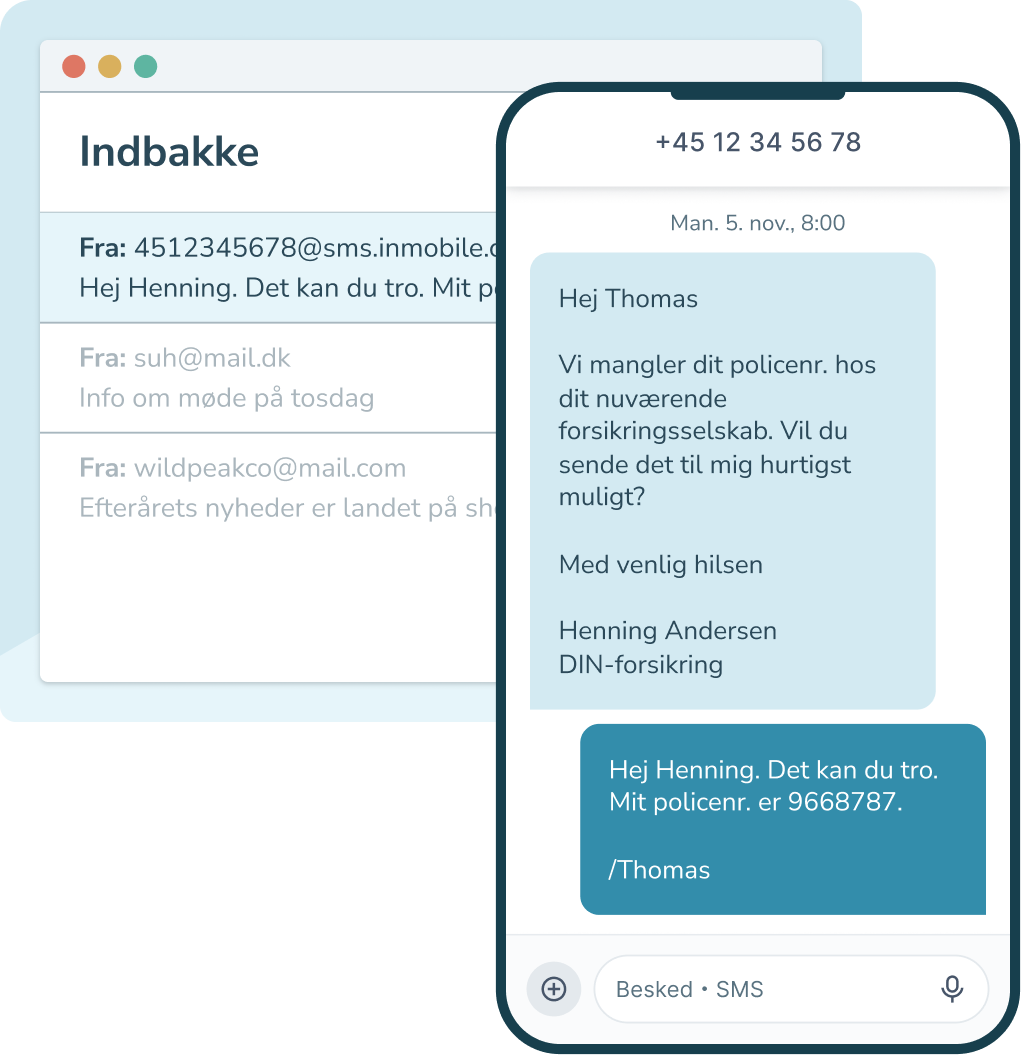
If you would like to receive an email reply, please use a virtual number as the sender. When the recipient replies to your SMS, it will again be converted and sent back to your email.
Open up to new opportunities with innovative integrations


What can you use SMS from Outlook for?
Notifications
SMS is an effective channel for short and important messages that need to be read immediately.
SMS from Outlook is therefore suitable for notifications, where it is important that the message arrives quickly. For example, it can be messages about new customer inquiries, changes in agreements or updates from internal systems. By sending the notifications as an SMS, you ensure that the recipient receives the message directly on the mobile, where it is almost always read within a few minutes.
Even if you send your message from your familiar mail program, the recipient will receive the message as a regular SMS. This is smart, as emails often disappear in filled inboxes and therefore are not seen until long after receipt.
Service messages
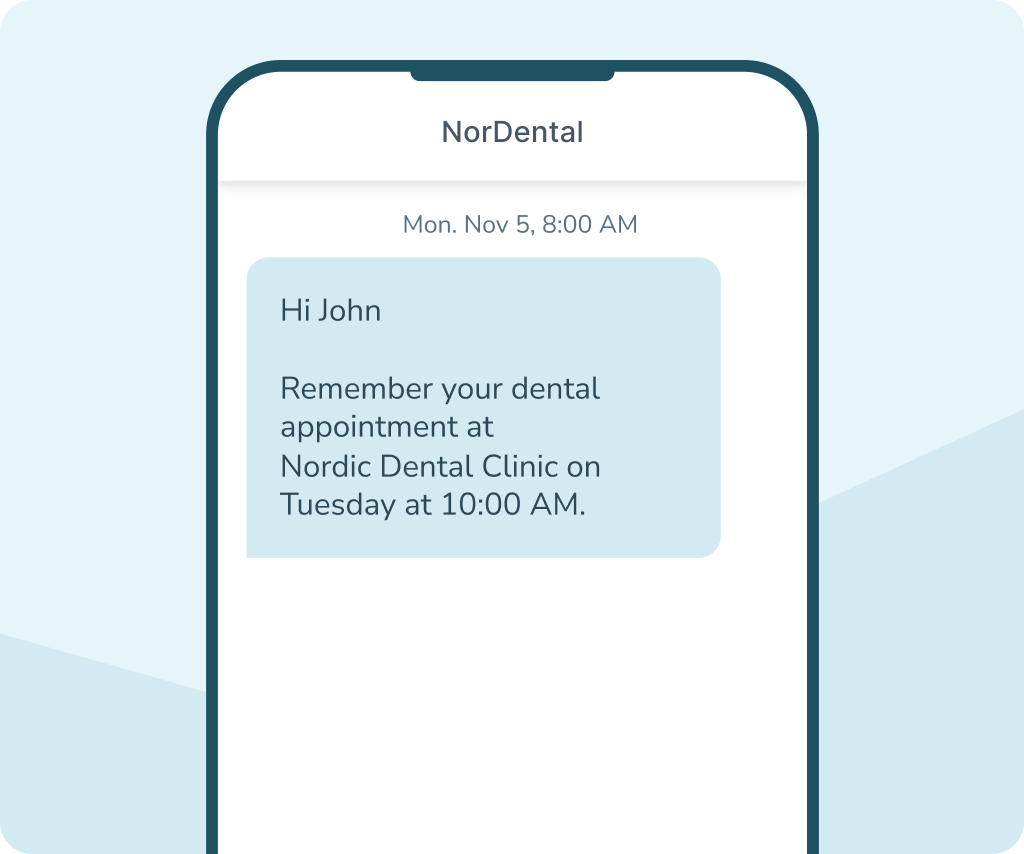
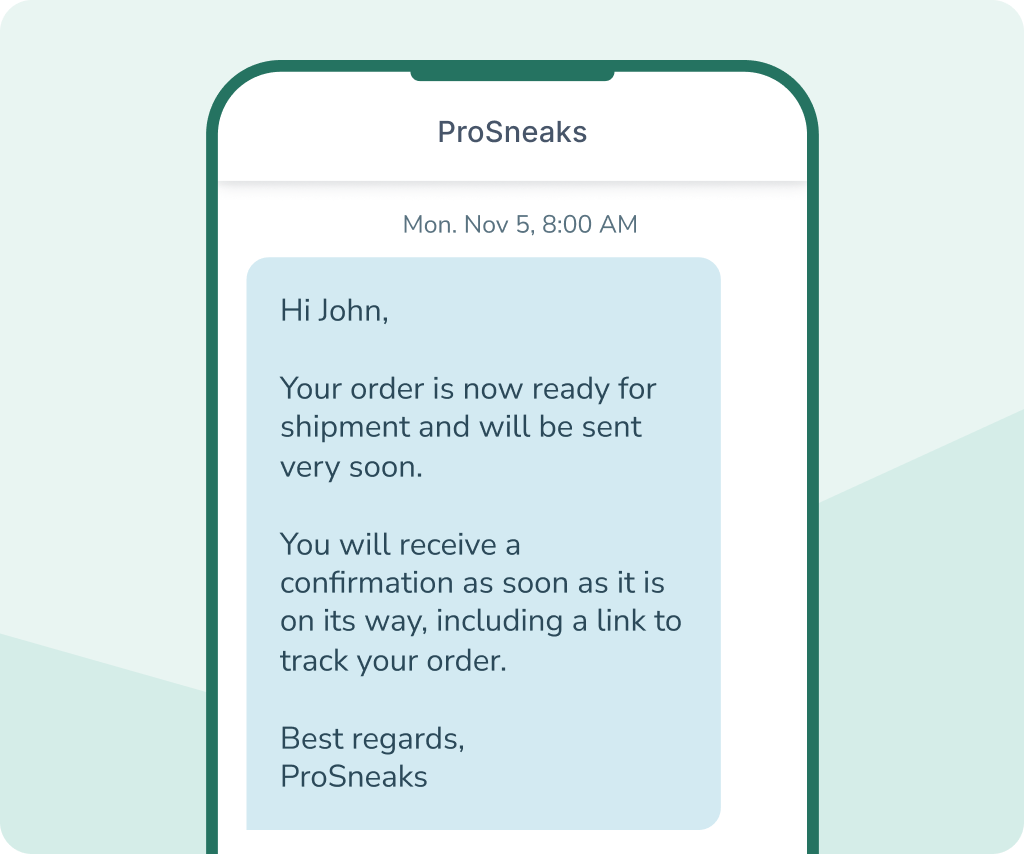
Use SMS from Outlook for service messages, where you want to inform customers or users about important updates. This can be, for example, confirmation of bookings, reminders of appointments, or notifications of changes to an order or delivery. By sending these messages as SMS, you ensure that the information arrives quickly and is seen in time.
Service messages via SMS are especially effective when communication is time-critical. Many companies therefore use SMS to send automatic reminders, status updates or short messages to help customers move forward.
By sending service messages directly from Outlook, you can handle the communication from the system you already use on a daily basis. It makes it easy to send messages quickly and keep the dialogue in one place.
Internal communication
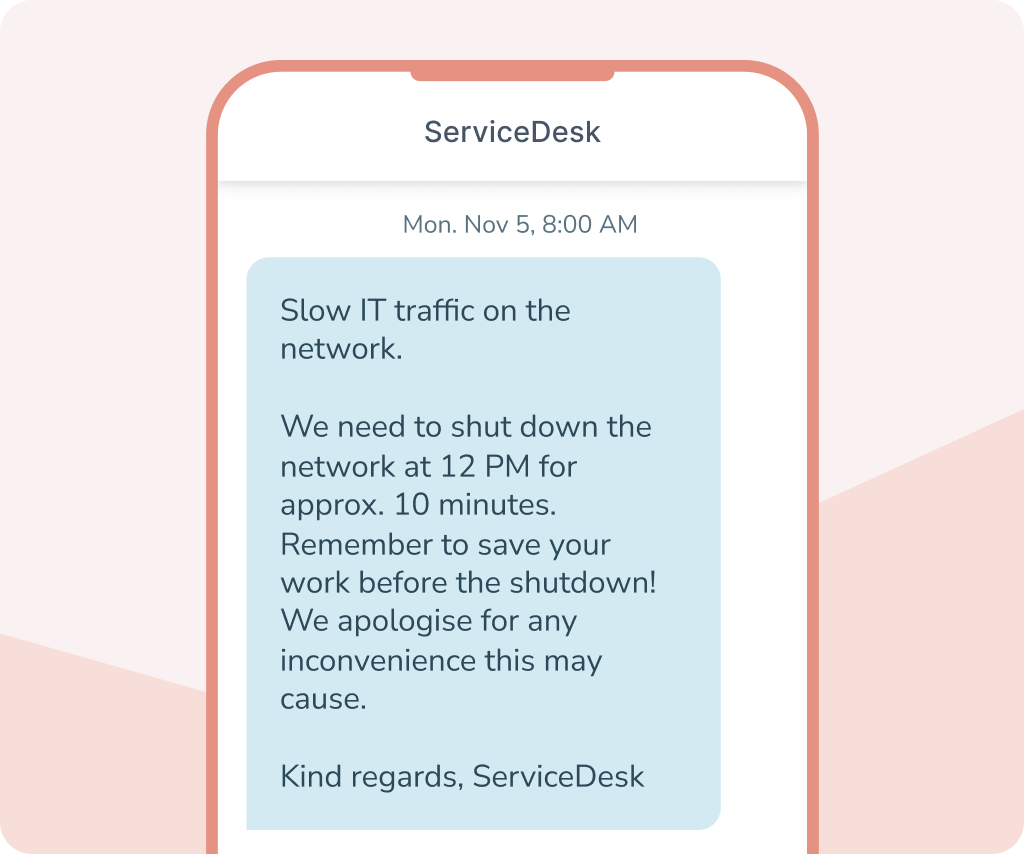
Use SMS from Outlook for internal company communication when it is important that the message is seen quickly. For example, it can be alerts about changes in shifts, operational updates, or quick messages to employees in the field who do not necessarily sit in front of a computer or have an Internet connection.
By sending internal messages such as SMS, you ensure that the information reaches your employees' mobile phones directly. That makes SMS an effective channel for short messages where timing is important and where emails might otherwise be overlooked.
When sending SMS via Outlook, you can simultaneously use the workflows that employees already know from their mail program. This makes the solution simple to apply in everyday life.
SMS options
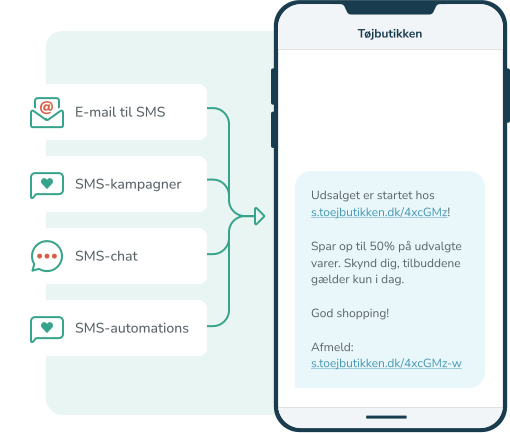
SMS marketing opens up a world of possibilities for how you can leverage the SMS channel. For example, would you like to send an automatic SMS message to new members of the customer club? Should the recipient be able to reply back to your message? And do you prefer to write your SMS messages in your mail system and send them from there?
It is all possible with SMS communication in InMobile.



Why choose InMobile?
99.998% uptime
24/7 call
Hosting in the EU
GDPR Compliant
+300 million Texting
+25,000 users
Features of SMS from Outlook
When you send SMS from Outlook with InMobile's email to SMS solution, you get access to a number of features that make it easy to manage your SMS communications. Among other things, you can customize the sender name, receive responses, and control which email addresses can send SMS from your account.


Email to SMS
Send SMS from your favorite mail program. The message is automatically converted and delivered as an SMS to the recipient's mobile.

Receive SMS replies
With a virtual number, the recipient can reply to your SMS messages. The reply will automatically be converted into an email and sent back to your inbox.

2-way SMS
Enable two-way communication so that the recipient can respond to your messages. It makes SMS from Outlook suitable for dialogue and quick follow-ups.

Whitelisting of mail
Increase security by authenticating specific email addresses that are allowed to send SMS. It ensures that only authorized users can send messages.

Sender Name
Choose for yourself which sender name to display with the recipient. It increases the recognizability and makes your SMS messages more professional.

Remove signature
Prevent your email signature from being sent in the SMS. InMobile can automatically remove signatures and formatting from emails before the message is sent.

Delivery Reports
Get an overview of your shipments with delivery reports. You can see if the message has been delivered and document your communication.

Integrations
Combine email to SMS with integrations for your other systems. It allows SMS to be linked to existing data and workflows.

Templates
Save your most used messages as templates. It saves time and ensures that your SMS messages are consistent and easy to reuse.
SMS from Outlook prices
The cost of sending SMS from Outlook depends on how many messages you send and which countries your recipients are located in. With InMobile, you pay a fixed monthly rate of 289 DKK per month for access to the entire platform and all features.
In addition, you pay a fixed price per SMS sent — and only for the messages you actually send.
See InMobile's pricing below or contact us to learn more.
- SMS to +200 countries
- Access to all functions
- Unlimited number of contacts and users
- Free email, phone and chat support
- Call center 24/7/365
FAQ: SMS from Outlook
Yes, you can. With an email to SMS solution, you can send SMS directly from Outlook. Simply write your message as a regular email and enter the recipient's mobile number in the recipient field.
The email is then automatically converted to an SMS via your SMS gateway and the message is delivered to the recipient's mobile phone.
When you send an email to a phone number followed by the domain xxx@sms.inmobile.dk, the inMobile platform receives the email. The content of the email is converted into an SMS message and the recipient experiences the message as an ordinary SMS.
Yes, you can. If you use a virtual number, the recipient can reply directly to your SMS sent from email. The response is automatically converted into an email and sent back to your inbox.
No, you don't. No installation or plugin is required. Simply set up email to SMS in your inMobile account and you can send SMS directly from your existing mail programme.
Yes, you can. Multiple employees can send SMS via the same solution. By whitelisting specific email addresses, you can control who has access to send SMS from company email accounts.
Yes, you can. You can send to multiple recipients by inserting multiple phone numbers in the recipient field or by using a list address created in inMobile. This way you can send one message to many recipients at the same time.
Yes, you can. Although many people use Outlook, email to SMS also works with other email programmes such as Gmail, Apple Mail or other email clients. As long as you can send an email, you can also send an SMS via inMobile.
You can choose which sender name to display to the recipient. For example, it could be your company name so that the recipient can clearly see who the message is coming from. The sender name is set up in your inMobile account and is automatically used when you send SMS via email.